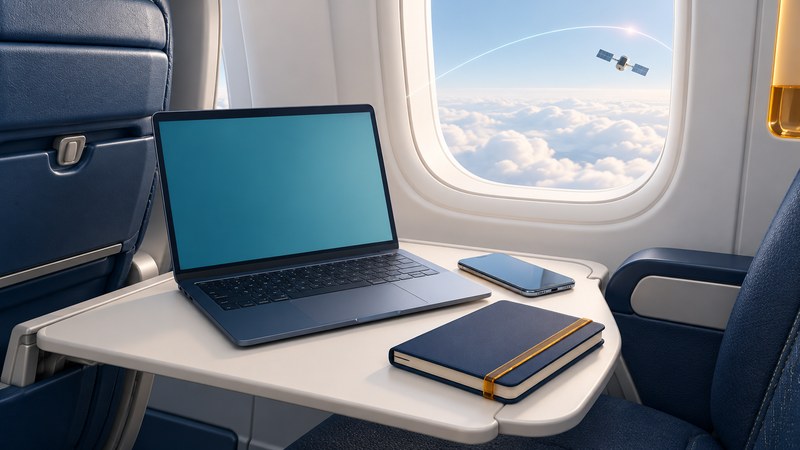
Check the airline’s information for your actual flight, then prepare to work even if the connection is unavailable. Onboard Wi-Fi can differ by aircraft, operating carrier, region and service package, and a last-minute aircraft change can alter what is offered.
Make a preflight connection plan
Use the operating airline's connectivity page and your booking or flight-status information. Confirm whether the offer covers messaging, general browsing or streaming; whether membership is required; and whether a pass is tied to one flight, device or account. Check the terms for connections and codeshares separately.
Two useful official starting points are Delta's onboard Wi-Fi guide and American Airlines' Wi-Fi information. Consult your own airline's instructions on travel day. A fleet rollout announcement gives broader context; the flight's actual equipment and portal determine your session.
- Sign in to the required airline account before leaving and confirm you know the credentials.
- Ask your employer how to complete multifactor authentication without cellular service. Prepare only approved offline authentication methods.
- Download the files, references and entertainment you need, and check that they open while offline.
- Charge devices and confirm any onboard power expectations. Keep a manageable offline task ready.
- Save the airline's official connection instructions or portal address for offline reference.
Connect in the order the airline specifies
- Follow crew instructions for device use. Enable airplane mode, then turn Wi-Fi on when permitted.
- Select the network identified by the airline's onboard instructions.
- Open the official portal, sign in and choose the required service or pass.
- Confirm Internet access, then connect an employer-approved VPN if required.
- Try the task you need, starting with a small request before sending a large transfer.
Delta specifically instructs passengers to complete the Wi-Fi login or purchase before enabling a VPN. Its guidance also calls out authentication without cellular service. Apply your organization's security policy: if a managed always-on VPN prevents portal access, use the approved captive-portal process or work offline instead of removing required controls.
The laptop's Wi-Fi icon confirms a local connection to the aircraft network. Internet authorization and the aircraft's external link are additional steps. Access to the airline's own portal can work even while external sites are unavailable.
Troubleshoot the stage that failed
| What you see | Try next |
|---|---|
| The network is absent | Check the crew's availability announcement and the device's Wi-Fi setting |
| Connected, but no sign-in page | Open the saved official portal address and use the airline's support instructions |
| Portal works, websites do not | Confirm the selected package, login completion and service status |
| Ordinary browsing works, VPN fails | Check approved VPN requirements and airline support; retain required security controls |
| Intermittent or slow access | Pause large sync jobs, save work locally and retry essential transfers |
Use the support option linked from the airline portal for billing or session problems. Save a receipt and a concise description of the issue if requesting a refund under the provider's terms. Avoid purchasing the same pass repeatedly while troubleshooting an uncertain payment result.
Choose tasks that tolerate interruptions
Downloading references in advance makes editing, reading and drafting possible through a gap. Save a local version before a large upload, and verify completion at the destination. Keep sensitive work within your employer's approved applications and connection requirements.
Check airline restrictions on calls as well as technical capability. Delta, for example, prohibits voice and video calls in flight even where streaming is supported. Follow the operating carrier's rules and crew directions.
For the network behind the service, read satellite latency and plan tradeoffs. For home troubleshooting, use the repeatable connection check. Airline offerings change frequently, so the official flight-specific lookup remains the final preflight step.
Explore the Internet library
Internet: Connections, Networks and Online Life brings together connection choices, network explanations, travel connectivity and Internet history.