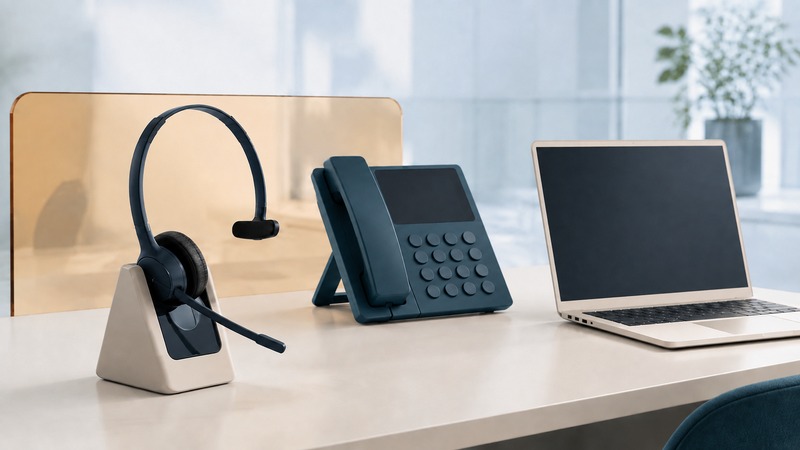
The right telephone headset starts with the device that handles your calls. A mobile phone, a computer calling app, and a desk telephone may need different connections—even when the headset looks identical. Establish the complete path, including any base or adapter, then check microphone quality, call controls, and comfort in your actual workplace.
Write down what the headset must connect to
List the exact phone or computer model, operating system, calling application, and headset variant. Include whether you need one device or several. “Works with computers” is too broad if you need to answer a desk-phone call from across the room or switch between a laptop meeting and a mobile call.
On a small screen, scroll the table sideways to read all columns.
| Connection | Where it can fit | Verify before buying |
|---|---|---|
| USB headset connected to a computer | A straightforward path for supported computer calling apps. | Connector, operating-system support, microphone selection, and application controls. |
| Bluetooth headset connected directly | A compatible phone or computer with the required audio support. | Exact device support, microphone behavior, and call-control integration. |
| Wireless headset with a USB adapter | A manufacturer-supported wireless path into a computer. | That the adapter belongs to the headset family and supports your calling app. |
| DECT headset with a base | A dedicated headset-to-base radio link; the base connects to supported phones or computers. | The base’s ports and required desk-phone cables, adapters, or lifter. |
| Wired headset for a desk telephone | A documented connection to a phone’s headset or handset interface. | The exact wiring and any required amplifier; a plug that fits is insufficient. |
A base or adapter is part of the system, not merely a charger. For example, Jabra’s Link 950 documentation describes a bridge between a compatible USB headset, desk phone, and computer, with a separate electronic hook-switch adapter required for some call-control functions. Its role differs from an ordinary computer Bluetooth dongle. Use a manufacturer’s model-by-model compatibility guide and include every required accessory in the comparison.
DECT and Bluetooth are different radio systems. A DECT headset supplied with its own base does not become a Bluetooth headset because the base plugs into USB. Check the complete product’s supported connections rather than comparing radio names alone. Wireless range claims also need an office trial: the useful boundary is where your speech remains intelligible in both directions, through the walls and around the equipment you actually have.
Sound working does not prove that all buttons work
Test answer, end, mute, and volume individually. A headset may carry audio while a particular application cannot interpret its buttons, or while its mute indicator does not match the app. A desk telephone may need an electronic hook-switch interface or handset lifter to answer remotely.
A concrete example appears in the Jabra Engage 65 SE manual (PDF): it documents desk-phone connection options and a direct USB mode for the headset, but that direct mode supports audio without call controls or the busylight. That limitation belongs to the documented mode; it is not a rule for all USB headsets.
For Microsoft Teams, check the exact certified model and connection method. Many Bluetooth headsets use their accompanying USB adapter, while Microsoft also lists native Bluetooth certified devices that can integrate directly on supported Windows systems. A blanket rule that every headset needs a dongle is no longer useful. Microsoft’s Teams device-certification documentation distinguishes these paths and explains the role of the computer’s Bluetooth hardware.
If you use multipoint, test what happens when the second device rings during a meeting. Two connected devices do not establish that audio will be mixed or that every application will pause and resume as you expect. Document which source takes priority and how to switch back deliberately.
A short acceptance test reveals more than a feature list
- Select the devices in the calling app. Set both speaker and microphone explicitly. Confirm you are testing the headset microphone, not the laptop microphone.
- Listen in both directions. Use the app’s test-call feature or a willing colleague. Speak normally, including quiet word endings, and check for clipping, echo, or a muffled voice.
- Test the controls. Answer, mute, unmute, adjust volume, and end a call. Observe the app’s state as well as headset feedback.
- Try your normal noise. Compare a quiet room with ordinary typing or ventilation. Keep the microphone in the manufacturer’s recommended position.
- Walk your actual route. If mobility matters, test the usual path while checking both listening and outgoing speech. Do not substitute an advertised distance for this trial.
- Check recovery. Test sleep, reconnection, charging, and switching between the devices you intend to use.
- Wear it for a realistic session. Check pressure, glasses, ear fit, microphone stability, and whether you can hear what you need around you.
Microsoft’s Teams device-settings guide covers speaker and microphone selection, test calls where available, and device-button synchronization. Other applications expose different controls, so repeat the test in the software you use.
Evaluate speech cleanup by what the listener hears
AI-assisted noise suppression can be useful in a busy room, but test it with the same spoken phrase before and after enabling it. Listen for lost syllables or an unnatural voice as well as reduced background sound. If both the headset software and meeting app offer processing, change one setting at a time. Microsoft documents the available choices in its Teams background-noise guide. A useful result is intelligible conversation, not simply the quietest background.
Match the system to the working day
Invented example: laptop-only support work. A worker spends the day in one calling app at a desk. A supported wired USB headset may meet the need with fewer charging and reconnection steps. The deciding test is sustained comfort and reliable microphone and button behavior in that app.
Invented example: desk phone plus laptop meetings. Another worker needs to answer the desk telephone away from the desk and join computer meetings. Compare a documented base or bridge configuration, including the phone-control adapter, against managing two separate headsets. Test a real incoming phone call during a computer session before accepting the setup.
Download a headset acceptance worksheet (CSV). Record the exact connection path and observed results so a successful setup can be repeated on another desk.
Related resources
- Audio profiles, microphone modes, and troubleshooting
- Permissions and security for shared devices
- Calls and music in a car
- Explore all Bluetooth resources
Researched and updated September 5, 2026. Feature availability depends on the exact devices, software, and connection method.