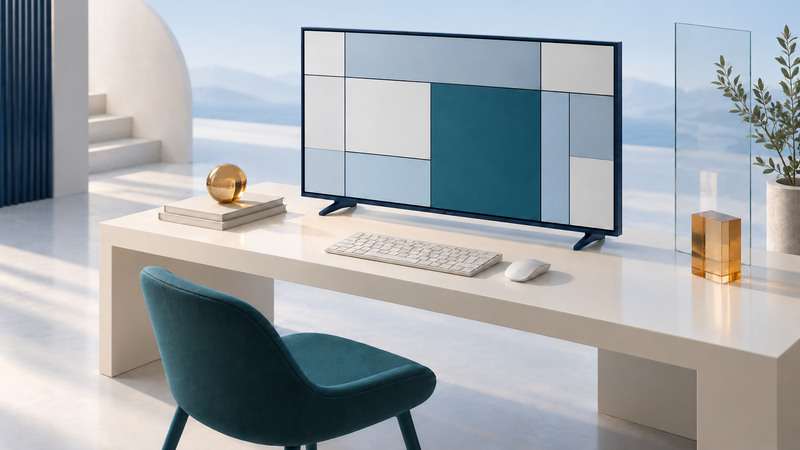
A widescreen television can be a useful computer display when text stays clear, the desktop fits the screen and the desk provides a comfortable viewing position. Test those tasks with your own computer before judging the setup by a movie demonstration.
Screen area is useful only when you can use it comfortably
Start with the work: documents, code, spreadsheets, calls, games or a combination. Measure the desk depth and the distance to the actual screen surface. A large TV can put the top edge above a comfortable sight line even when its lower edge is near the desktop.
OSHA's monitor guidance recommends placing the display directly in front of the user and arranging height and distance so text is readable with a supported, upright posture. It generally places the top of the screen at or below eye level. Use adjustable text size and an appropriate support; do not compensate for a poor fit by craning your neck or reaching farther for the keyboard.
Check the complete computer-to-TV path
Record the GPU or computer model, adapter or dock, cable, TV input and selected picture mode. Start with a direct connection where possible, using equipment documented to support the intended resolution and refresh rate. Adding a dock or AV receiver introduces another set of limits.
In Windows, choose the correct display in Settings, then inspect its resolution, scaling and advanced display information. Microsoft's guides explain resolution and layout and refresh-rate selection. Check the active signal after changes: a higher refresh choice can require a different resolution.
On the TV, consult the model's PC-input instructions and supported timing table. Some inputs have a setting that enables higher-bandwidth signals. Samsung's 2022 PC-connection guidance illustrates Input Signal Plus, while explicitly limiting its instructions by model. Use your own manual rather than copying that page's resolution limits to every Samsung television.
Separate scaling, overscan and color detail
Scaling changes the size of desktop elements. Overscan enlarges the picture so its edges fall outside the visible screen. Use the TV's appropriate screen-fit or PC mode to show the full desktop, then adjust operating-system scaling for comfortable text.
Fine colored text also depends on the signal's color sampling. RGB or YCbCr 4:4:4 preserves color information at every pixel location, whereas subsampled formats share some color information across neighboring pixels. A film may look acceptable while small colored letters look smeared. AMD's pixel-format instructions show the available RGB and YCbCr choices on supported Radeon systems; availability depends on the connected display and hardware.
Open a document with small black text, colored text, thin lines and a visible border near all four edges. Check at normal viewing size, with browser zoom recorded. If edges disappear, investigate overscan. If black text is sharp but colored text has fringes, check color format and PC mode. If everything is soft, verify native resolution and remove unnecessary image processing. These observations narrow the investigation; they are not laboratory measurements of a panel.
Match the computer's output range and TV's expected black level. A mismatch can make dark detail disappear or make black look gray. Record original settings before changing them, and use documented automatic or matched settings where available.
Judge responsiveness during the actual task
Move the pointer, drag a window and scroll a familiar document. Compare the TV's documented PC or low-latency mode with its ordinary video mode. Motion interpolation and other processing can change response; the best movie preset may feel awkward at a keyboard.
Keep panel refresh, input refresh and game frame rate distinct. A TV advertised with a motion-processing number may accept a different set of computer timings. After reconnecting a dock or waking the computer, confirm that the intended mode returns.
Establish a readable SDR desktop first. Test HDR separately with supported material and the relevant application, preserving a record of both setups. For the wider source-to-screen chain, see HD, 4K and HDR content.
Make a short work trial decide the result
- Read and edit a real document at your normal desk position.
- Arrange the windows you use together and inspect their outer corners.
- Check pointer response, scrolling and one video call or game if relevant.
- Test sleep, wake, audio selection and reconnection.
- Repeat with daytime reflections and evening lighting.
Save the configuration and findings in the desktop test record. If the image is technically correct but the desk fit is uncomfortable, a smaller screen or different workstation layout may solve the actual problem more effectively than more picture adjustments.