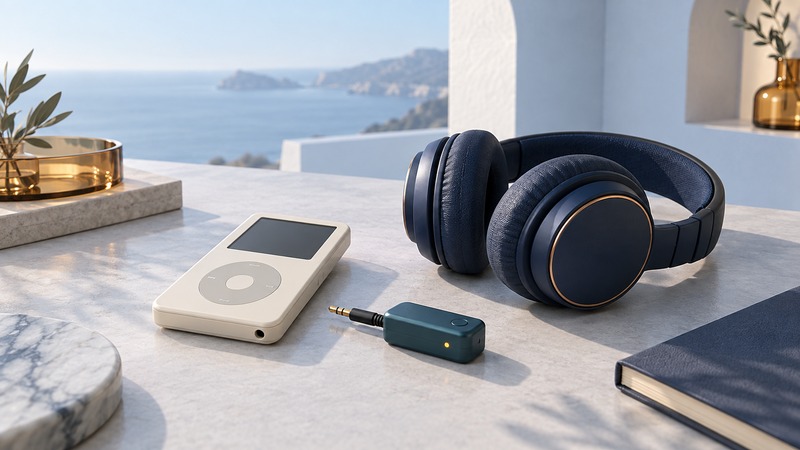
Start with the exact iPod model. Some iPods provide Bluetooth themselves; others need an external transmitter connected to an audio output. For wireless headphones, audio must travel from the iPod to the transmitter and then to the headphones. A receiver made for a speaker dock performs the opposite job.
Identify the player before choosing an accessory
Use the model number and physical details in Apple’s iPod identification guide. Names such as nano and touch cover several generations. Write down the generation, model number, connector, and working audio output. Check an old player with wired headphones first so you know it plays the intended files.
The seventh-generation iPod nano specifications explicitly list Bluetooth 4.0, a 3.5 mm headphone jack, and Lightning. The late-2009 iPod classic specifications list a dock connector and 3.5 mm stereo headphone jack; that model requires an external route for Bluetooth listening. For an iPod touch or another nano, consult its own specifications rather than extending one model’s features to the family.
On a small screen, scroll the table sideways to read all columns.
| What the player supports | First route to consider | What to verify |
|---|---|---|
| Documented Bluetooth audio | Pair headphones through the player's settings | Supported accessory, pairing procedure and controls |
| Working 3.5 mm audio output | Audio transmitter connected to headphone output | Transmit mode, physical fit, charging and headphone support |
| Compatible dock-connector audio accessory | Model-specific dock transmitter | Exact iPod generation and firmware support |
| No confirmed working audio output | Restore basic playback first | File playback, connector and battery condition |
Check mode, power, and controls
For an analog headphone-output route, choose a device documented to transmit to Bluetooth headphones. As a concrete architecture example, Twelve South’s AirFly Pro 2 documentation distinguishes TX, which sends headphone-jack audio to wireless headphones, from RX, which receives phone audio for an AUX input. Verify the exact product and its supported headphones rather than assuming every adapter provides both modes.
A headphone jack carries analog sound. It does not by itself transfer the iPod’s library, track titles, or playback-control commands. Plan to select music on the iPod unless the particular accessory documents additional controls. External transmitters also have their own power arrangements: check charging time, remaining-charge indication, and any restrictions on charging while playing.
A dock transmitter may draw power from the player or depend on particular generations. Ask for an explicit compatibility entry and instructions for your model. A physically matching dock connector supplies insufficient evidence of successful audio or controls.
Pair and check a single listening path
- Confirm a known track plays correctly through wired headphones, then lower the player volume.
- Charge the headphones and external transmitter, if used, with their specified supplies.
- Select transmit mode and connect the transmitter to the documented player output. For built-in Bluetooth, use the iPod’s own pairing menu.
- Put the headphones into their documented pairing mode. Temporarily disconnect another phone that may automatically claim them.
- Complete pairing as the transmitter or iPod manual describes, start the same track, and raise volume gradually.
- Test pause/resume, track selection, walking with the player, and reconnection after ordinary power-off.
Keep the first test to one player and one pair of headphones. Add a second headset only when the transmitter explicitly supports it and the first path works. Record any changed behavior instead of assuming a second connection behaves identically.
Diagnose sound and decide whether the setup is useful
If pairing completes but sound is absent, check transmit mode, the player’s actual playback, the headphone plug, and volume at each available control. If the player remains silent through wired headphones, investigate the player first. If another phone can play through the headphones, that establishes a working comparison path without proving transmitter compatibility.
For video, watch familiar speech and judge synchronization. For music, compare at a comfortable similar listening level; louder playback can bias a casual comparison. Wireless latency and codec support depend on both endpoints. A transmitter adds convenience, while the original file, player output and headphones still influence the result.
Save your settings and cable arrangement before packing the player. If frequent charging, an awkward protruding connector, or unreliable reconnects outweigh the convenience, wired headphones remain a useful option for the same music library.
Keep a record and continue
Download the iPod headphone compatibility checklist (plain text). Use the blank result fields to record your own equipment and observations.
- Send phone audio into an old iPod speaker dock
- Understand audio modes and wireless tradeoffs
- Explore all Bluetooth guides
Researched and updated September 13, 2026. Product examples explain connection types; no physical iPod or transmitter combination was bench-tested for this guide.